3. Remote & HPC execution
LatticeMind prepares inputs on your machine and can send the calculation itself to a remote workstation or cluster. It uploads the inputs, pseudopotentials (or NanoDCAL basis files) and a job script, runs the solver over SSH, and fetches the results back into the project.
Important
LatticeMind never sends your API key and never runs the AI agent remotely. Only the solver runs on the remote host. It also never stores your password, private key, or 2FA code.
3.1. In a research conversation
A conversation sends calculations to a remote host over direct SSH. The conversation and the model stay on your machine; only the solver runs on the remote host.
/remote lists every saved profile and every host in ~/.ssh/config,
labelled configured (a saved profile) or found (a host you could add), with
+ to add a profile through a short wizard (name, host, scheduler, work
folder, transfer tool, solver commands, shell setup), a connection test, and
l to run on this machine again. Choosing a profile launches nothing; every
launch still asks for your permission, unless approve-for-me covers it (a
low- or medium-cost run on a saved profile). In the browser, click Runs on
in the top bar, or type /remote: the same list opens with Test, Use
and + Add a remote profile.
/remote                     # list, choose, or + add
/remote add                 # the wizard
/remote test office         # SSH, file transfer and the solver command; nothing is uploaded
/remote office              # use it for this conversation's runs
/remote local               # run on this machine again
/remote setup office        # add SSH session reuse (helps with 2FA)
/remote warm office         # open one reusable SSH session; approve 2FA once
To start a conversation with a profile already chosen:
latticemind --remote-profile office
The permission question for a remote launch names the host and the remote folder, so you can see where the work is going before it goes. While the job runs, its output streams into the conversation as it does for a local run. If the connection drops, LatticeMind checks on the existing job when you come back rather than starting a second copy.
A profile for a conversation needs scheduler = "direct" and the command for
each solver you want to run there:
[profiles.research_host]
host = "my-research-host"
scheduler = "direct"
remote_root = "/home/myuser/latticemind_runs"
rescu_command = "rescu"
nanodcal_command = "nanodcal"
vasp_command = "/opt/vasp/bin/vasp_std"
These are example paths, not installed executables. Each solver needs its own
installation, license, runtime libraries and compatible pseudopotential or
basis data on the host; configure only the commands that exist there. A missing
command is reported, and another solver is never substituted.
shell_preamble may hold environment setup such as module load rescu;
do not put credentials in it or in command arguments.
RESCU, NanoDCAL and VASP calculations can all be sent to a direct-SSH profile;
remote VASP is part of the VASP preview. Slurm profiles are saved and listed,
but a conversation launches over direct SSH only; use latticemind quick for
Slurm. From a script, latticemind research chat --remote-profile NAME
--remote-solver rescu|nanodcal|vasp selects the profile and solver.
A successful remote run is a finished process, not yet a converged or physically adequate result; LatticeMind reports those separately.
3.2. With latticemind quick
The steps below describe profiles in general and the one-shot pipeline’s remote execution, including Slurm. They do not enable Slurm in a conversation.
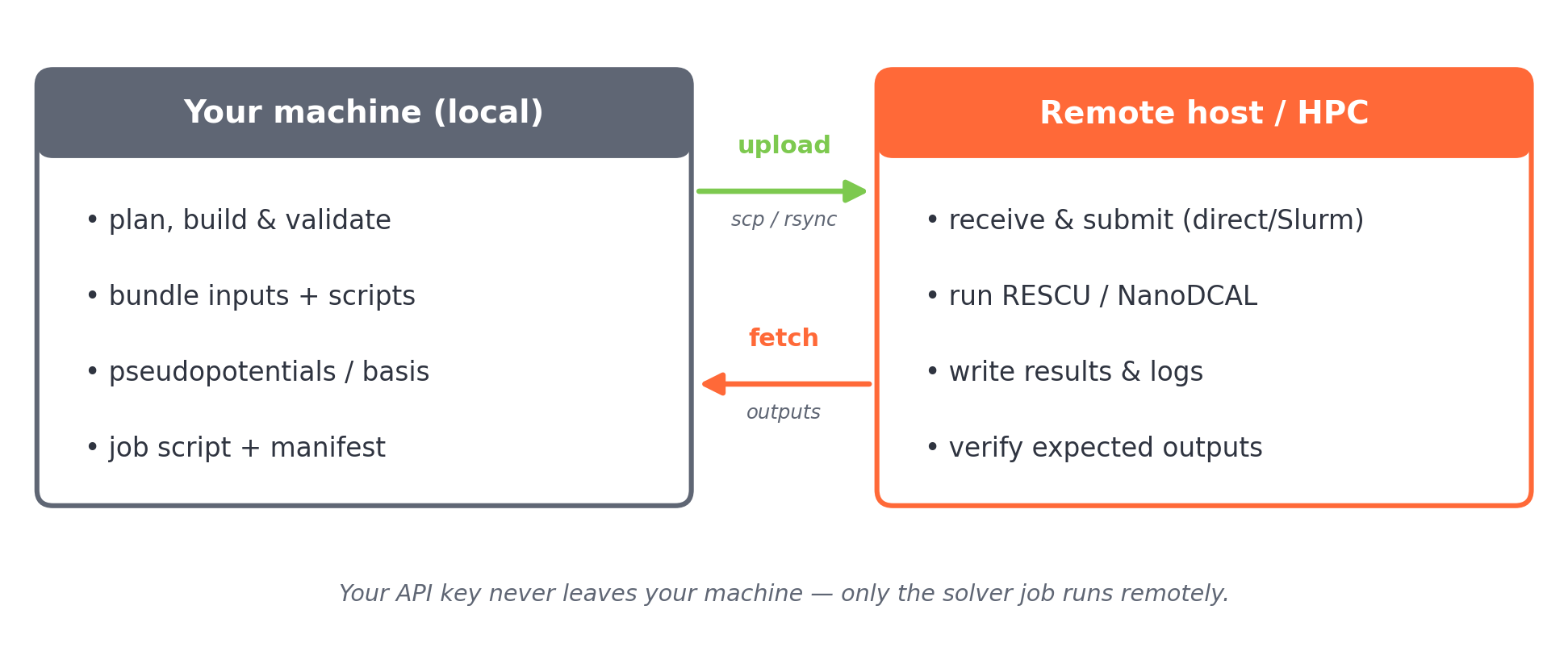
Fig. 3.2.1 Remote execution: LatticeMind prepares the job locally, uploads it, runs it (directly or via Slurm), then fetches the outputs back into the project.
3.3. Step 1 — Confirm plain SSH works
Before involving LatticeMind, make sure ordinary SSH already connects to your machine or cluster:
ssh my-profile true
LatticeMind drives ssh, scp/rsync, and Slurm commands through your
normal SSH configuration. Fix any SSH issues here first.
3.4. Step 2 — Describe the target
Define one or more profiles in ~/.latticemind/remote_profiles.toml.
Direct SSH workstation:
[profiles.office]
host = "my-office-computer"
scheduler = "direct"
remote_root = "/home/myuser/latticemind_runs"
transfer = "scp"
rescu_command = "rescu"
shell_preamble = ""
Slurm cluster:
[profiles.cluster]
host = "my-cluster-login"
scheduler = "slurm"
remote_root = "/scratch/myuser/latticemind_runs"
transfer = "rsync"
rescu_command = "rescu"
shell_preamble = "module load rescu"
account = "my-account"
partition = "short"
time = "02:00:00"
nodes = 1
ntasks = 4
cpus_per_task = 1
mem = "8G"
Field |
Meaning |
|---|---|
|
SSH host (as in your |
|
|
|
Base directory on the remote host where job bundles are staged. |
|
|
|
The RESCU launch command on the remote host. For NanoDCAL use
|
|
Shell lines run before the solver, e.g. |
|
Slurm resource request for |
3.5. Step 3 — Select and test the profile
In a conversation, use /remote as described above. In latticemind
quick:
/remote profiles # list profiles
/remote profile office # select one
/remote setup office # add reusable-SSH settings (helps with 2FA)
/remote warm office # open one approved SSH session (approve 2FA once)
/remote test office # check SSH, solver, and scheduler
/compute remote # or: /compute slurm
/execute on
A convenient shortcut runs the whole selection interactively:
/remote wizard
Tip
If your machine uses 2FA, /remote warm lets you approve it once;
LatticeMind reuses that single approved SSH session for upload, submit,
status, logs, and fetch.
You can also run remote commands from the shell before opening the app:
latticemind remote setup office
latticemind remote warm office
latticemind remote status office
latticemind remote close office # close the saved SSH session early
3.6. Step 4 — Launch and track jobs
Before any remote run, latticemind quick shows the target, remote
directory, upload method, job script, inputs, and Slurm resources for you to
review. After submitting, track the job for the active project:
/remote status
/remote logs 80
/remote fetch
/remote fetch latest
/remote workdir
/remote cancel
/remote doctor # remote/HPC readiness checks
From the shell, the profile is named on the command line, and a long calculation can be released so that it keeps running after LatticeMind exits:
latticemind run "<request>" --execute --approve-execution \
--remote-profile cluster --detach
latticemind run --project <project-dir> "Continue this project: collect the finished results" \
--execute --approve-execution --remote-profile cluster
The released work runs in the background on direct SSH targets, or as the submitted batch job on Slurm, independent of the SSH session that started it. The second command reattaches, fetches what has finished, and reports from it. See Releasing a long calculation (latticemind quick).
3.7. Serial-only guardrails
Some RESCU post-analysis stages must run serially. LatticeMind reads each input
before launch and, for guarded stages such as dfpt-phonon-bs,
dfpt-phonon-dos, dfpt-optic, and dfpt-raman, removes MPI launchers
and unsafe parallel flags. For Slurm bundles containing only guarded serial
stages, it also submits with one node, one task, and one CPU per task. Override
the guarded list with LATTICEMIND_RESCU_SERIAL_ONLY_CALC_TYPES only if your
RESCU build supports those stages in parallel.
3.8. Runtime profiles (deployment context)
Remote profiles describe how jobs launch. Runtime profiles, used by
latticemind quick, describe the broader shell or cloud environment and
advisory operator instructions LatticeMind should consider when planning run
scripts and reports. Set them interactively:
/runtime
/runtime cloud on
/runtime system Linux container with RESCU 3.x under /opt/esapp
/runtime note Slurm jobs must use /scratch/myuser and module load rescu
/runtime prompt Use the shared scratch filesystem for generated job files.
/runtime file /home/myuser/latticemind_operator_prompt.txt
/runtime save
Or via environment variables in cloud deployments:
export LATTICEMIND_CLOUD_MODE=1
export LATTICEMIND_RUNTIME_PROFILE=cluster
export LATTICEMIND_SYSTEM_DESCRIPTION="Linux container with RESCU under /opt/esapp"
export LATTICEMIND_ENVIRONMENT_NOTES="Use /scratch/myuser; module load rescu before jobs"
export LATTICEMIND_OPERATOR_PROMPT_FILE=/home/myuser/latticemind_operator_prompt.txt
export LATTICEMIND_EXECUTION_BACKEND=slurm
export LATTICEMIND_REMOTE_PROFILE=cluster
export LATTICEMIND_REMOTE_SCHEDULER=slurm
Or persist them in ~/.latticemind/config.json (or a file named by
LATTICEMIND_CONFIG_FILE):
{
  "runtime_profile": {
    "runtime_profile_name": "cluster",
    "cloud_mode": true,
    "system_description": "Linux container with RESCU installed under /opt/esapp",
    "environment_notes": "Use /scratch/myuser; module load rescu before jobs",
    "operator_instructions": "Use the shared scratch filesystem for generated job files.",
    "execution_backend": "slurm",
    "remote_profile": "cluster",
    "remote_scheduler": "slurm",
    "rescu_command": "/opt/esapp/rescu"
  }
}
Note
Operator instructions are advisory deployment context. They never
approve a launch: a conversation asks before each one, and latticemind
run requires both --execute and --approve-execution.
See also
A worked example — a remote conversation, then a Slurm cluster with
latticemind quick — is in Running on a remote machine or cluster.